Frequently Asked Questions
Completion requirements
9. Assignment
9.1. Submitting an assignment
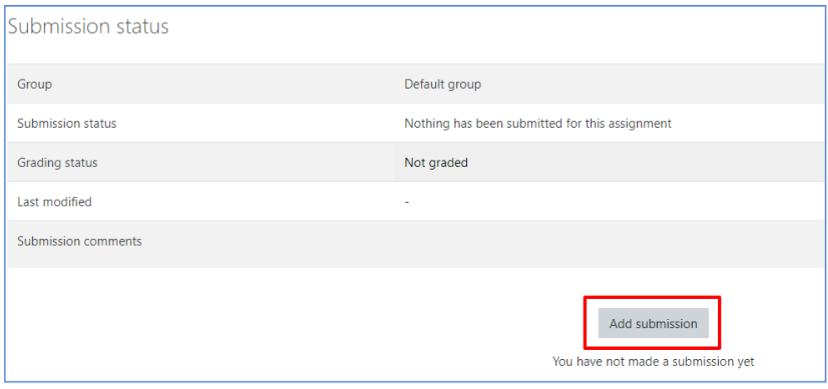
To begin submission of an assignment, go to the assignment page and click “add submission”.
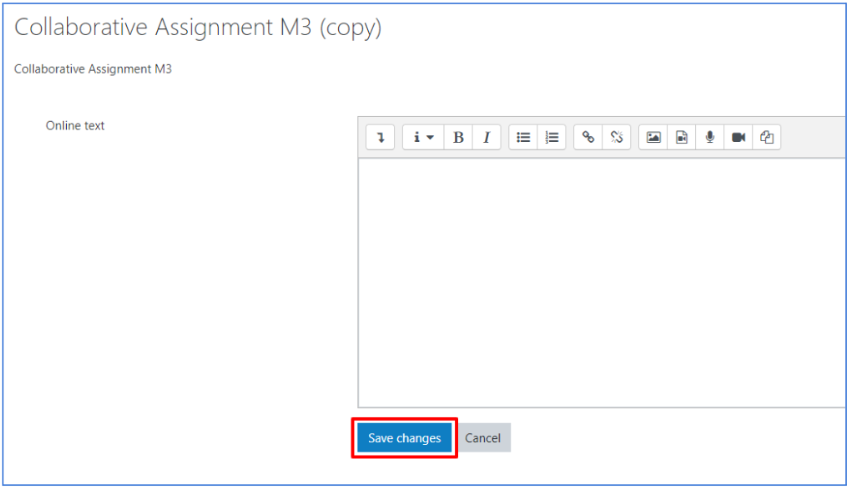
Depending on the type of assignment, you will be asked to either upload one or more file(s), or to type some text in an open field. The picture below shows a text assignment example. When you finish working on your assignment, click “Save changes”.
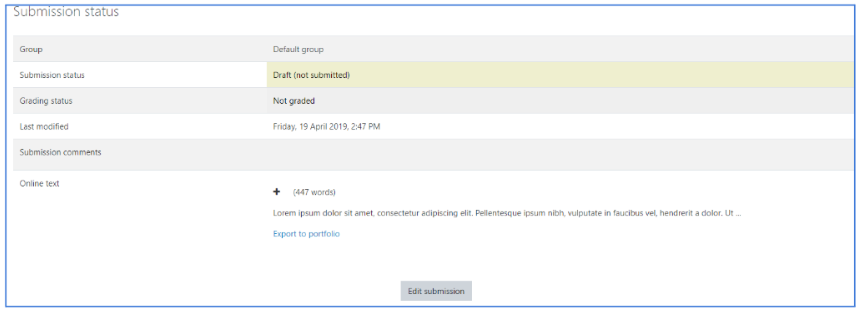
After saving your draft, you will be shown a summary of your draft. You can still edit your draft by clicking “edit submission”. Your work has not yet been submitted!
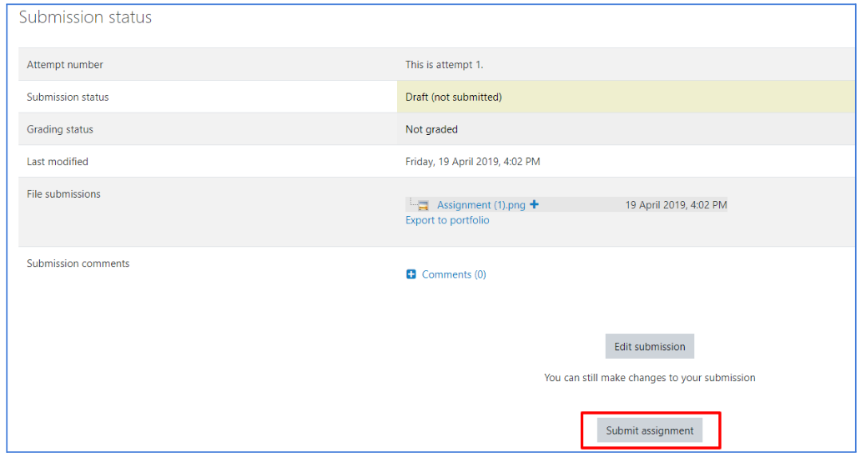
To submit your work, click instead “Submit assignment”.