Frequently Asked Questions
7. Webinar
7.2. Webinar interface
The default main screen of a webinar on the platform consists of:
- The list of connected participants
- The presentation screen
- The screen with connected users
- A public chat
- Shared notes
- Controls to enable/disable audio, video, and raise hand
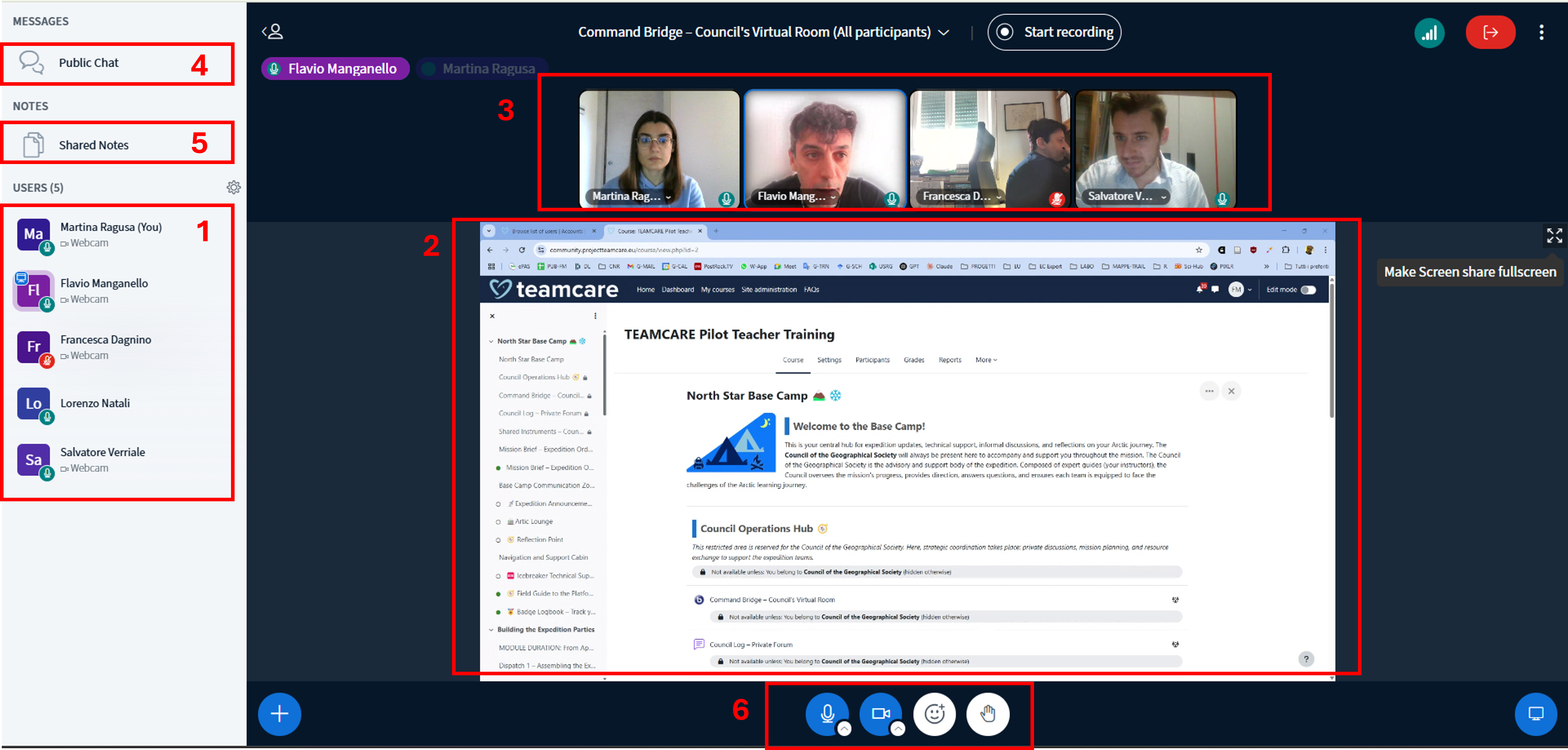
The Users panel lists all the Webinar participants’ names along with a series of icons useful to understand what action each user is able to do, and their roles:
- Moderator (can activate and deactivate audio & video for other users, select a presenter among the participants, make other users moderators…)
- Presenter (has full access to the presentation screen; only one participant can be presenter at a time)
- User with Video and Audio activated. All currently active video streams are visible in the Webcams section.
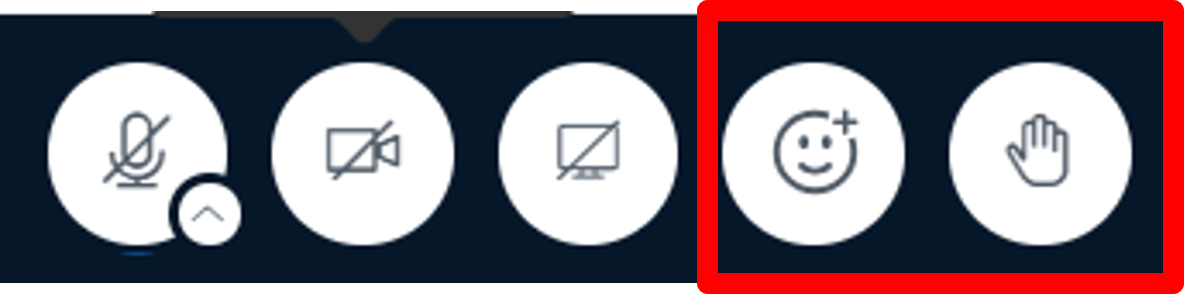
Participants can use the Emoji Tool to update their status icon. This functionality allows users with deactivated microphones to make their voices heard by selecting one of the available icons.
Particularly important is the Raise hand icon, that can be used to ask a moderator for the right to speak.
The Presentation panel is the main section of the Webinar module. All the documents and slides shared by the Presenter will be shown here.
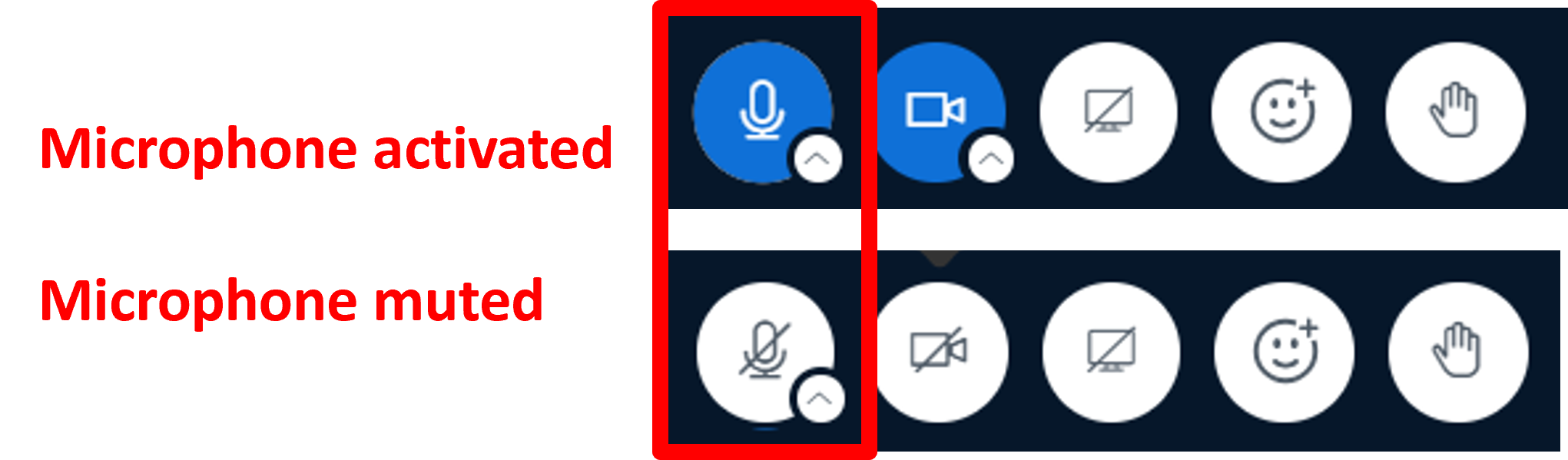
Depending on the Webinar settings, you may find when you join the room that your microphone is muted or unmuted. You can mute and unmute yourself by clicking on the microphone button.
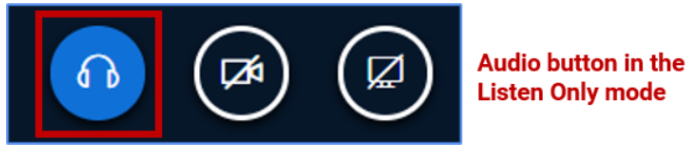
Additionally, you can always switch between Microphone mode and Listen only mode.
Click the Telephone shape icon to switch to Listen only mode.

Click on the Headset shape icon to switch to the Microphone mode.
The Public Chat panel is located in the upper left-hand corner of the BigBlueButton interface.
If you do not see the public chat option available, you may need to select the Users List / Chat Toggle to expand the users list panel and public chat.
Select Public Chat to expand the public chat panel. To hide the public chat panel, select the “<” symbol.
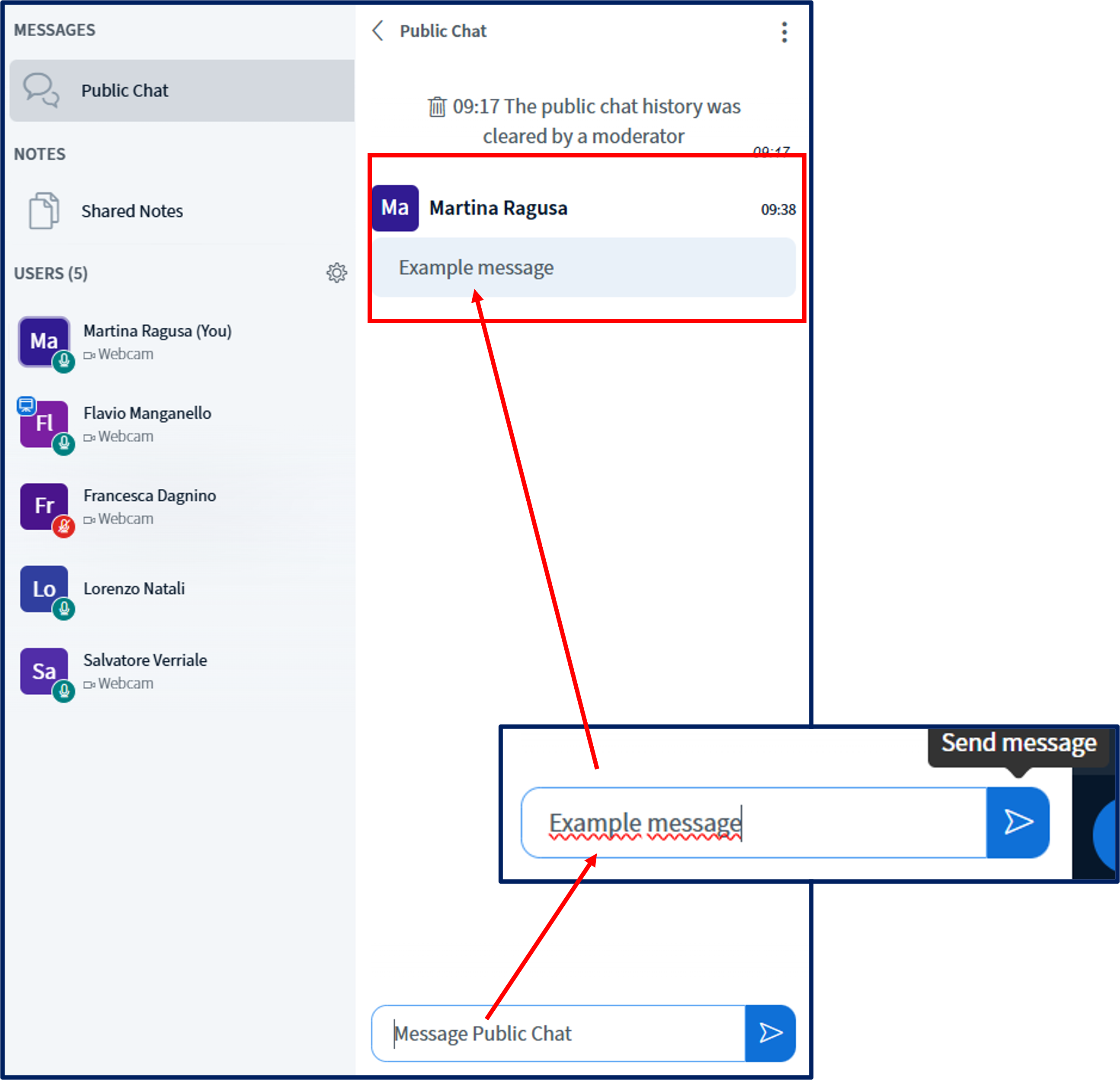
Use the Chat Input field to type messages into the public chat. Your chat messages (and messages from other users) will appear in chronological order.
You can save or download public chat by selecting the Chat Options menu.
When the public chat pane is open, you can either Save (you will be prompted to download the public chat as a text file) or Copy (the public chat will be copied to the clipboard) the chat.
To private chat with another user, select their name (a pop-up menu will appear), then choose Chat.
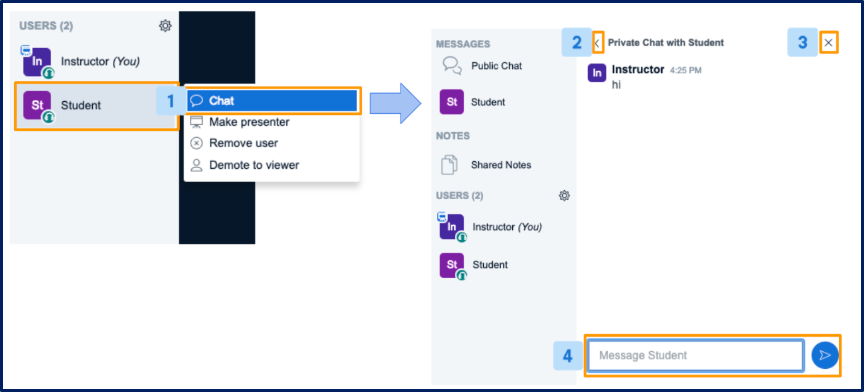
A Private Chat panel will appear. To hide the panel, select either “<” or “x”.
Use the Chat Input field to type messages into the private chat.
In addition to public and private chats, all users in BigBlueButton can access the Shared Notes panel.
Shared notes enable all the users in a meeting to contribute to a common text-based file. You can use formatting options and always export the shared notes later.
Located under the notes section, select Shared Notes to expand the notes panel. Formatting options such as Bold, Italic, and undo/redo can be found at the top of the notes panel.
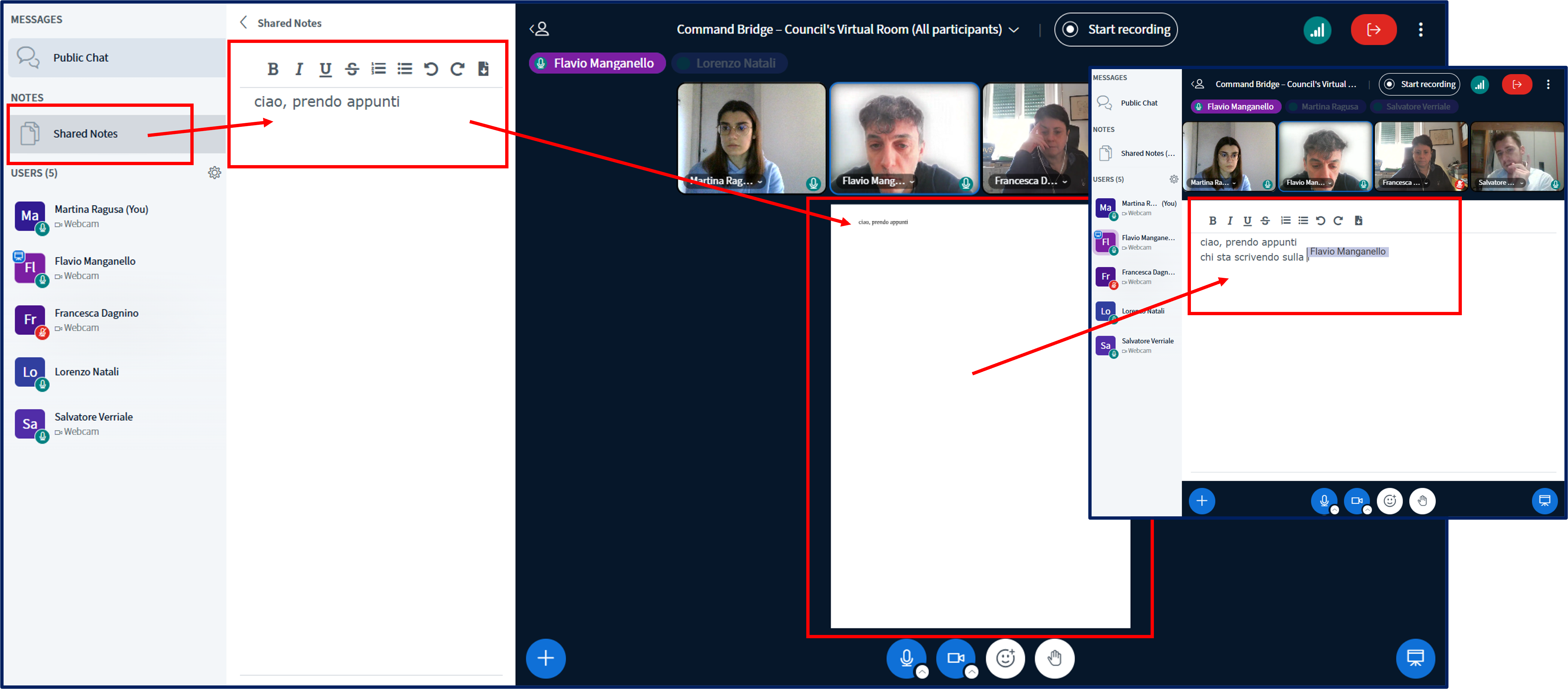
To find undo/redo and the download buttons, press the '+' button.