Frequently Asked Questions
7. Webinar
7.1. Accessing a webinar
Webinars will be delivered directly from inside the platform through a dedicated plugin.
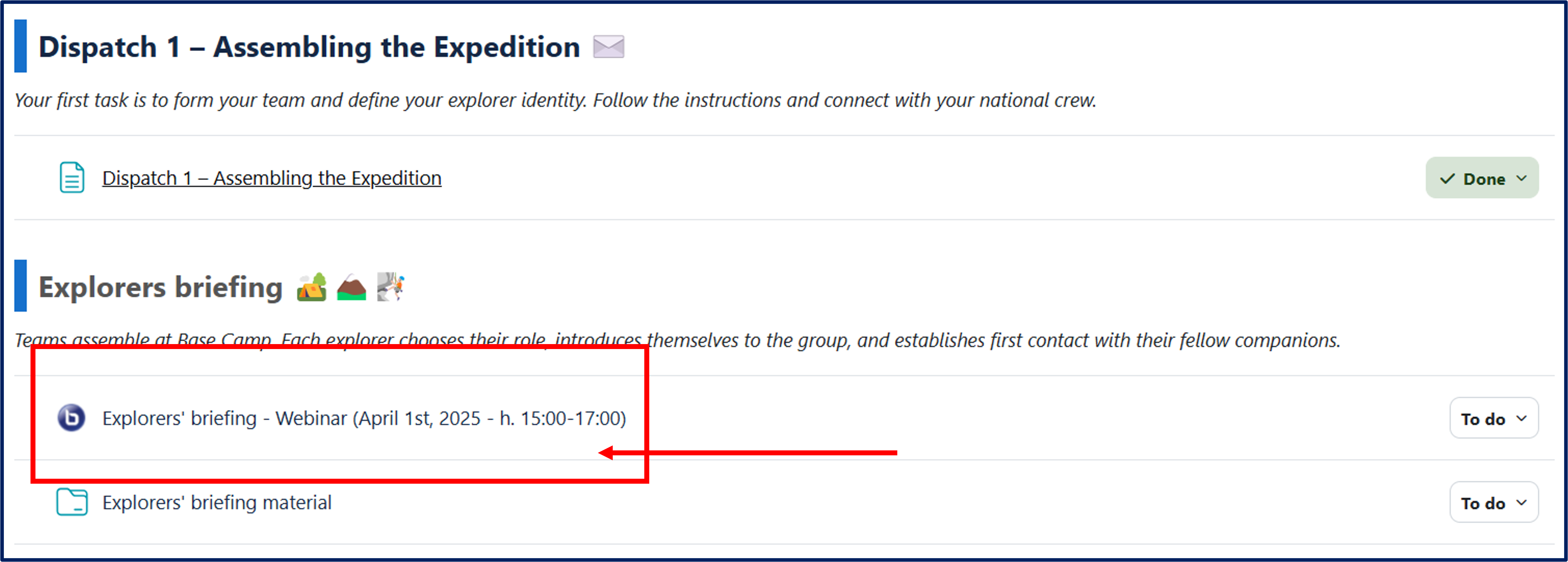
To access a Webinar in the platform as a crew member, click on the Webinar title in the homepage of the course.
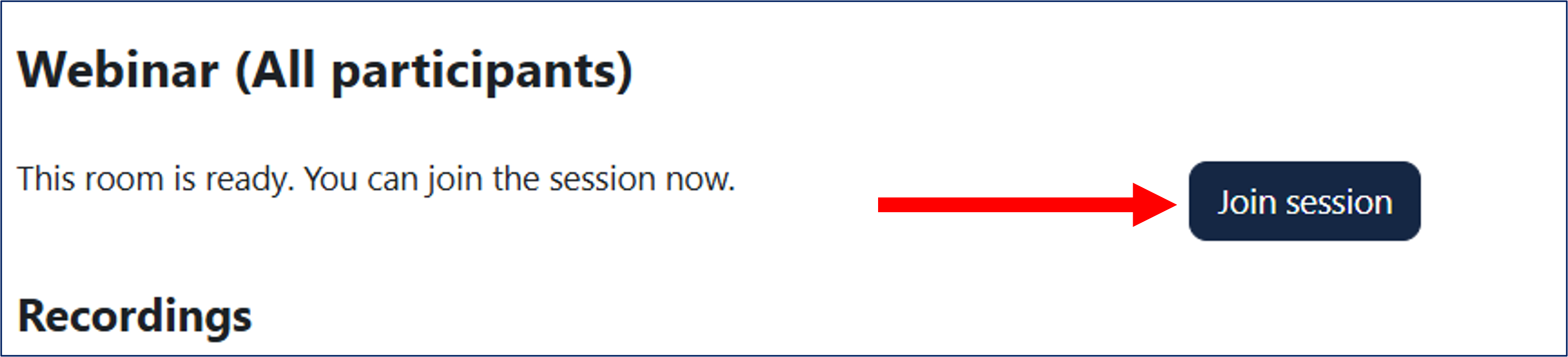
You will be directed to the Webinar page. Click on ‘Join session’ to enter the Webinar room. This will open a new browser tab.
Before accessing the Webinar room it is possible to choose how to join:
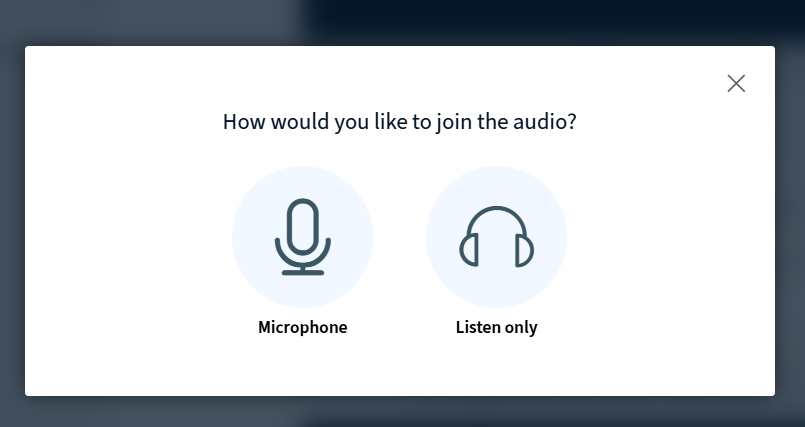
To be able to actively speak during the Webinar, click on the Microphone icon.
To only enter as a listener, click on the Listen only headset icon.
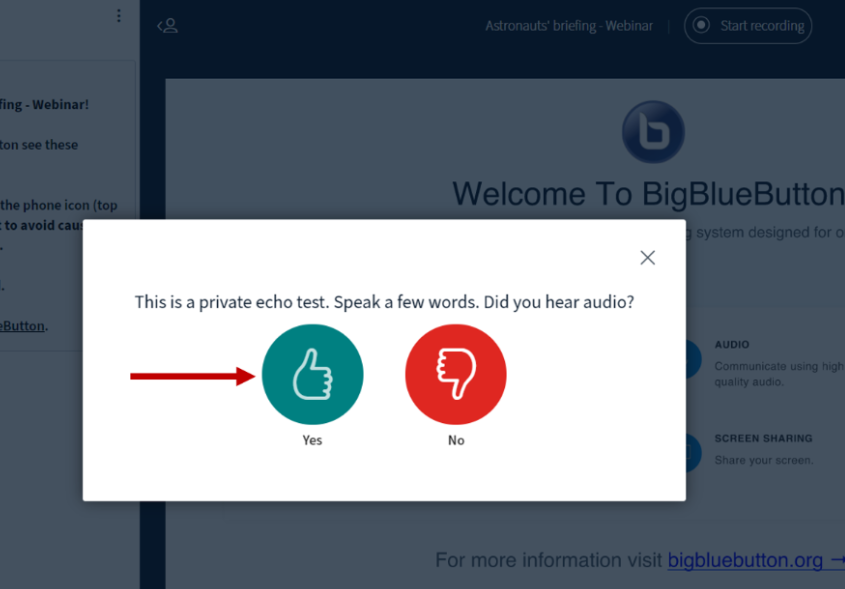
If you chose to activate your microphone, an audio test will be offered.
If you are using the Webinar functionality on your device for the first time, while you are connecting to the echo test, your browser may ask you for permission to use the microphone. Please allow that permission.
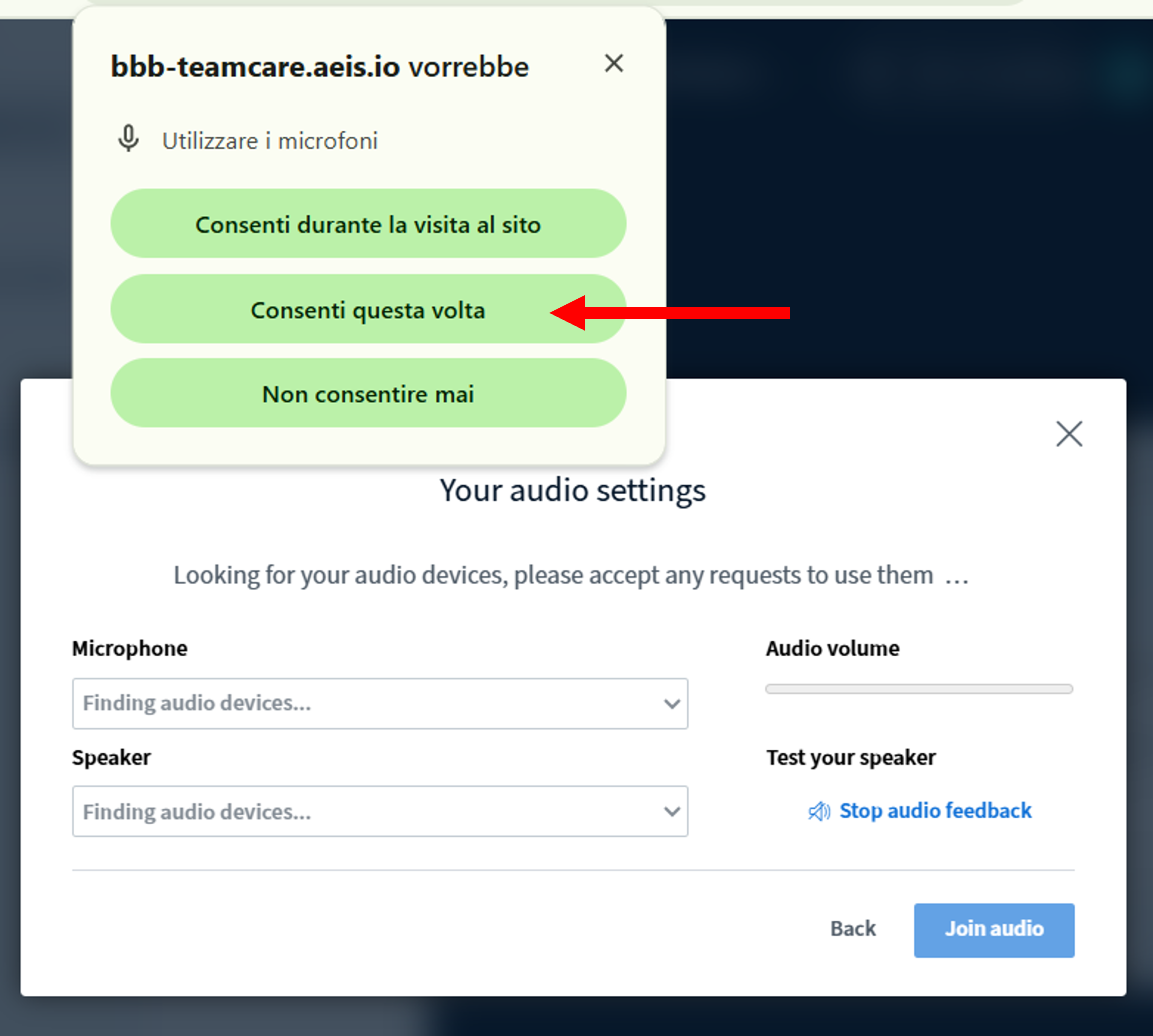
To test your audio connection, speak into the microphone: if you hear your voice back then everything has been set up correctly, and you can continue by clicking on the green thumbs-up button (Yes). Other participants in the Webinar room will not hear you at this stage.