Frequently Asked Questions
6. Forum
6.1. Start a new forum discussion
To start a new thread (1), click on the Add a new discussion topic button (1 in the image above) to access the New Discussion Topic panel.
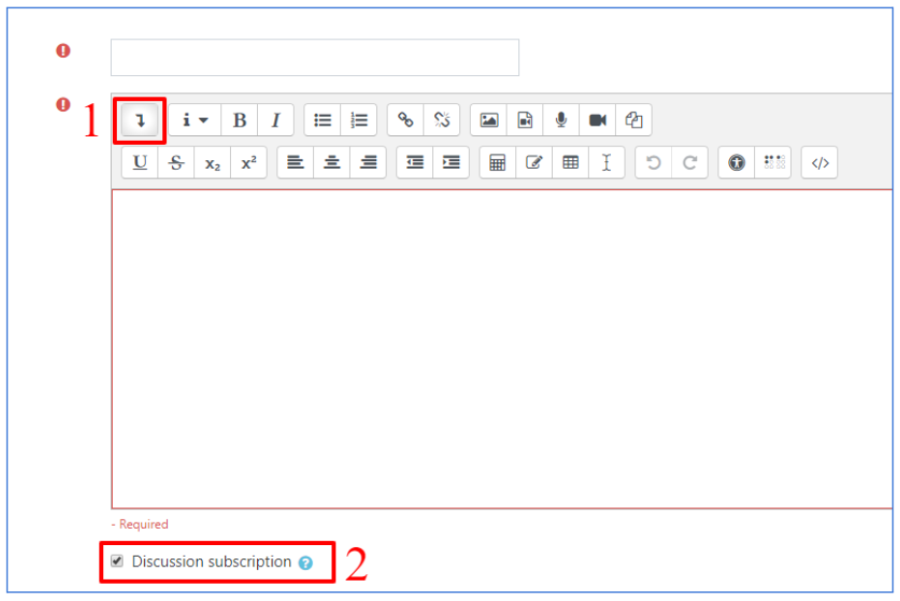
Both a subject and a message are required. Try to keep the subject short, but informative on the message contents. Make sure that your discussion is in-topic for the forum you are posting it in.
The message text field has some simple formatting options for changing font style and size, and add lists, links or multimedia files. You can access more advanced formatting options by clicking the downward arrow (see 1, above).
By clicking on the ‘advanced’ button, just under the text editor, you’ll be able to access additional options.
For example, it’s possible to subscribe to your post (see 2, above). If you do, you will be notified whenever someone posts a reply to your discussion.
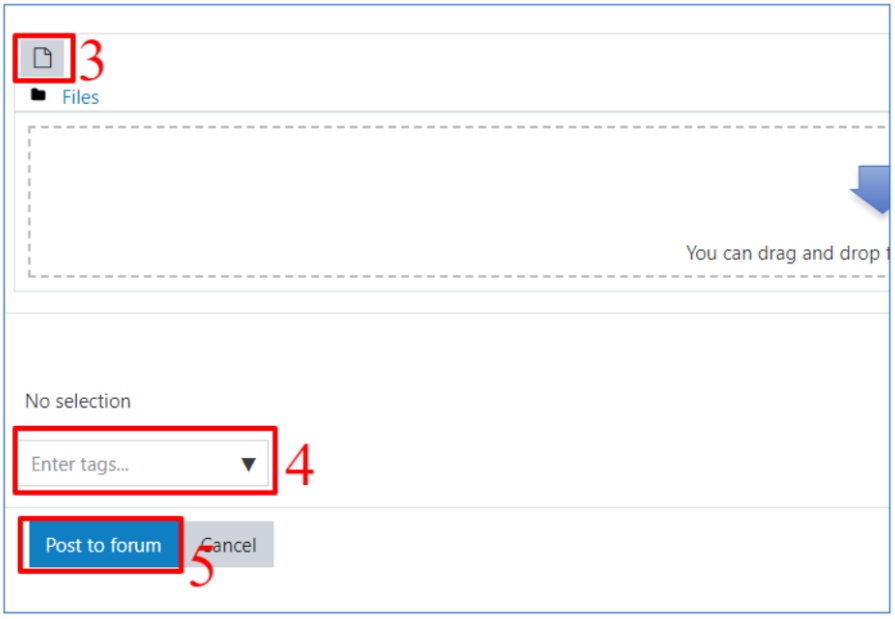
You can also add attachments to your discussion by opening the file picker (3, below) or by dragging and dropping files to the area just beneath it. Using the file picker, you can upload a file from your device, retrieve a file using an URL, or select one file you already uploaded on the platform. You can additionally add tags to your post (4, below) to make it easier for other participants to find your discussion. Both attachments and tags are optional and accessible only after clicking the ‘advanced’ button.
When you are ready to post your discussion, click the button labeled “Post to forum” (5, below). Your post will now be visible to all other participants.