Guidelines for TEACHERS - Recommended tools _v.0.1
| Site: | TEAMCARE Integrated Platform |
| Course: | Guidelines for TEACHERS supporting the design of innovative strategies for interprofessional teaching and learning |
| Book: | Guidelines for TEACHERS - Recommended tools _v.0.1 |
| Printed by: | Gość |
| Date: | Monday, 21 September 2026, 3:18 AM |
Table of contents
- 1. Introduction
- 2. Index
- 3. Assignment
- 4. Completion Tracking
- 5. Badge
- 6. BigBlueButton (BBB)
- 7. Book
- 8. Choice
- 9. Calendar
- 10. Database
- 11. H5P
- 12. Feedback
- 13. File
- 14. Folder
- 15. Forum
- 16. Glossary
- 17. SCROM
- 18. IMS Content Package
- 19. Lesson
- 20. Page
- 21. Questionnaire
- 22. Quiz
- 23. Wiki
- 24. Text and Media Area
- 25. URL
- 26. Workshop
- 27. Group choice
- 28. Board
1. Introduction
The content of this Book is designed to provide a clear and concise overview of the Activities and Resources available on the platform to help you create, manage, and enrich your online courses.
For more information, you can consult the official documentation on moodle.org or the official Moodle YouTube channel, where you will find video tutorials, practical examples and updates on the platform's features.
The following paragraphs will describe the characteristics and main methods of use of the activities and resources available on the platform (see image below).

2. Index
3. Assignment
The Assignment activity allows students to submit work to the teacher for assessment. Submissions can be typed directly online or uploaded as files in any supported format.
Assignments can be individual or group-based, and assessments can use simple scores, custom scales, or detailed rubrics.
During configuration, the teacher can:
- Provide instructions and upload supporting materials.
- Set submission methods and deadlines.
- Define feedback options (including inline annotations).
- Require a declaration of authorship.
- Enable or disable submission edits after sending.
- Enable group submissions if the course uses groups.
- Choose rubrics as an advanced grading method
Additional resource:
4. Completion Tracking
In the course, each activity has completion criteria that indicate the necessary actions to consider it completed.
In some cases, it is enough to view the activity, while in others, it may be required to achieve a specific score or manually mark it as completed.

You can check the activities that still need to be completed through the "To-do" menu, which displays a list of the required actions for each item. This tool helps monitor progress within the course.

5. Badge
Badges offer an effective way to recognise achievements and highlight learner progress. They can be awarded based on a range of predefined criteria, allowing for flexibility in how accomplishments are acknowledged. Once earned, badges may be displayed on a user's Moodle profile and, if connected, can also be pushed to their Badge Backpack, making them visible in public badge collections linked to their account.
Additional resource:
6. BigBlueButton (BBB)
BigBlueButton is an open-source web conferencing system integrated into Moodle, designed for distance learning. It allows teachers to create virtual classrooms in real-time directly from the Moodle course.
Key features:
- Teachers can schedule sessions, which are automatically added to the course calendar.
- If supported, sessions can be recorded for later viewing.
- Students see the join link only when the session is live.
- Sessions can be configured to start only after a moderator joins.
Additional resource:
6.1. Breakout rooms
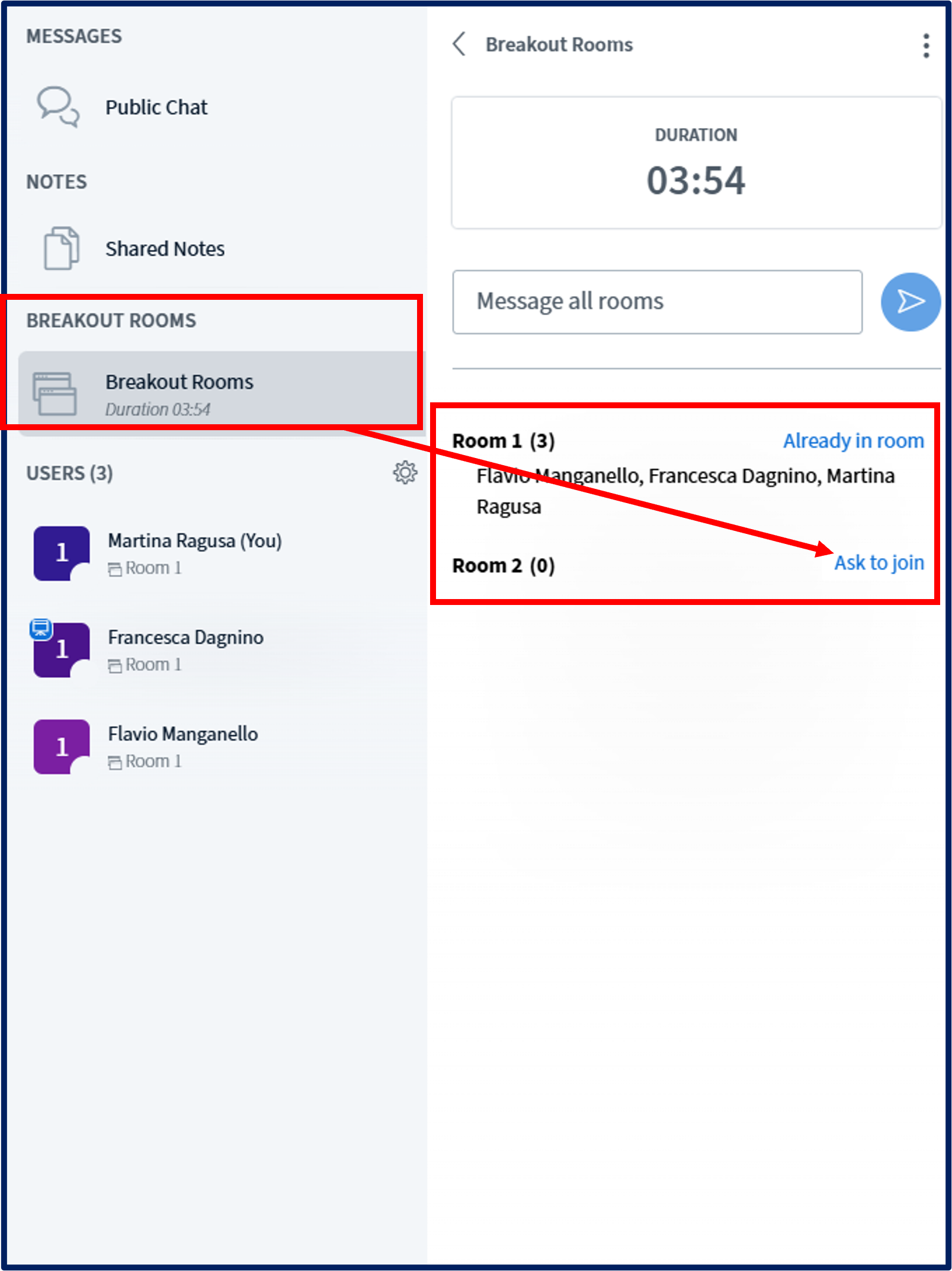
During a webinar activity, the moderator may decide to split the participants into separate groups called breakout rooms. To accept an invitation to join a breakout room, click on the blue Join Session button in the popup alert that will appear on the screen:
When requested, perform the audio test to enter the room, which will open in a separate tab:
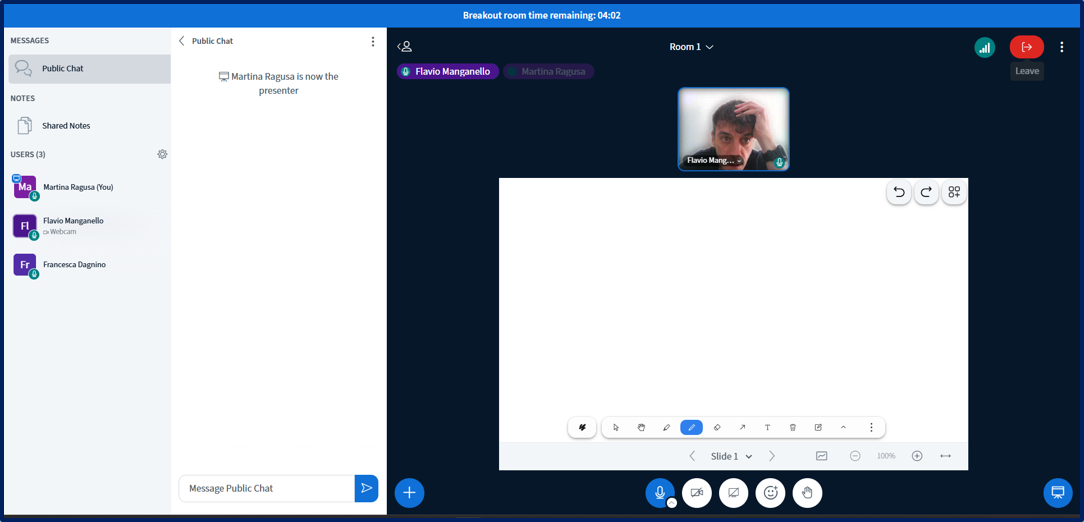
Breakout rooms work exactly like the main instance of the webinar, with the following exceptions:
- Documents shared in the Presentation panel will only be visible to members of the group.
- Chat messages will only be readable by members of the group.
7. Book
The Book resource enables teachers to create structured content across multiple pages, similar to a book with a table of contents.
Multimedia elements can be embedded, and the content can be printed either in full or by chapter.
Editing is possible directly from the index when edit mode is enabled. Hidden pages are visible to teachers but not to students.
Additional resource:
8. Choice
The Choice activity lets teachers ask a question and offer students one or more answer options via radio buttons. Students can change their response if allowed by the teacher.
Useful for:
- Quick polls to spark reflection.
- Voting on course-related decisions.
- Gauging understanding or progress.
Teachers can:
- Always view results.
- Decide whether students see peers’ answers, with or without names.
- Limit the number of responses per option.
- Highlight who hasn't answered yet.
- Enter responses on behalf of students.
Results can be downloaded in various formats and shown immediately or only after the choice period ends.
Additional resource:
9. Calendar
The Calendar resource in Moodle is a central organizational tool that displays important dates and deadlines within a course.
It automatically shows events such as assignment due dates, quiz openings and closings, and other activity deadlines.
Teachers can add their own course events, while students can add personal ones, making it both a shared and individual planning space.
Events can be categorized (course, group, user, site), helping learners distinguish between different levels of importance.
The calendar view supports daily, weekly, and monthly navigation, improving visibility of upcoming tasks and commitments.
Links from calendar entries take students directly to the related activity or resource.
Uses:
- Keeps learners aware of due dates and schedules.
- Enhances time management and reduces the risk of missed deadlines.
- Acts as a communication channel for important course-wide or group-specific events.
Additional resource:
10. Database
The Database activity allows both teachers and students to create, view, and search a collection of structured records. Each record is made up of fields defined by the teacher (text, images, dropdowns, numbers, files, etc.).
Common uses include:
- Collecting student work.
- Archiving bibliographic references.
- Gathering projects, images, or shared resources.
Additional resource:
11. H5P
H5P enables teachers to create and integrate interactive content into the course, such as interactive videos, quizzes, presentations, educational games, and more.
H5P content can be:
- Created directly in Moodle’s Content bank.
- Developed on h5p.com or using the LUMI desktop app.
- Added to the course as an H5P activity or embedded within other activities/resources (e.g., a page or lesson).
Additional resource:
12. Feedback
The Feedback activity allows teachers to create custom surveys to gather opinions, comments, and evaluations from students. It’s particularly useful for course or teaching evaluation.
Main features:
- Questions can be created directly within the activity (e.g., multiple choice, open-ended, rating scales).
- Custom messages can be displayed after submission.
- Results can be anonymous or named, depending on settings.
- Existing questionnaire templates can be reused.
Configuration steps:
- Choose a name and (optionally) a description.
- Set submission options and questions.
- Customize the post-submission message.
Additional resource:
13. File
The File resource allows teachers to upload and display a single document. It’s ideal for sharing specific materials like an article, handout, or PDF guide. Files or zipped folders can be dragged directly into the course page.
Additional resource:
14. Folder
The Folder resource allows teachers to organize and display multiple files within a single visible folder in the course. It’s useful for grouping materials such as PDFs, presentations, images, or other file types. Files can be uploaded individually or as a .zip archive to be unzipped in Moodle.
Options include:
- Displaying a description of the folder on the course page.
- Enabling a download button for the entire folder (helpful for offline use).
- Displaying contents in different formats (expanded, collapsed, with or without previews).
Folders can be added by dragging in a compressed folder or selecting “Folder” from the activity/resource chooser and configuring it manually.
Additional resource:
15. Forum
The Forum activity allows students and teachers to communicate within the course by exchanging text-based messages, with the option to attach files, images, and multimedia content. It's a useful tool to foster participation, discussion, and collaborative reflection. Posts can be rated by the teacher or, if enabled, by students as well.
- Each post can include attachments and formatted text.
- Forums support different usage types, each suited to specific contexts:
Types of Forums:
- Standard forum for general use
The most flexible option. Students can start new discussions and reply freely. Suitable for open discussions on various topics. - Single simple discussion
Only one discussion thread is available to all participants. Best for focused conversations on a specific topic. Students can only reply. - Q and A forum
The teacher posts a question, and students must reply before seeing others' responses. Encourages individual thinking and reflection. - Each person posts one discussion
Each student can post only one discussion topic, ideal for personal reflections or projects to be commented on.
Additional resource:
16. Glossary
The Glossary activity enables the creation and management of a list of terms and definitions, similar to a dictionary. Primarily designed as a collaborative tool, it can also be managed solely by the teacher.
Students can add new entries (if allowed), edit them, and browse existing ones.
- Glossary auto-linking highlights glossary terms throughout the course, turning them into clickable links.
- Configuration options include:
- Allowing or disallowing duplicate entries.
- Enabling student editing of entries.
- Requiring approval before entries are published.
- Customizing appearance and navigation (e.g., alphabetical, by date, by author).
When setting up the glossary, you enter at least one example term:
- Concept: the word or phrase to define.
- Definition: the explanation of the concept.
Additional resource:
17. SCROM
A SCORM package is a standardized collection of digital learning content that can be uploaded and deployed within Moodle or other SCORM-compliant LMS platforms. SCORM ensures interoperability, reusability, and accessibility of training content and activities.
- SCORM packages are uploaded as a single compressed file (.zip) and may include presentations, quizzes, animations, and interactive modules.
- Moodle tracks student interactions, scores, and completion times, helping monitor learning progress.
- Compatible with content created using authoring tools like Articulate, iSpring, Adobe Captivate, etc.
- Works best when both the package and platform use the same SCORM version (e.g., SCORM 1.2, SCORM 2004).
SCROM is useful when integrating pre-structured training content that adheres to international e-learning standards.
Additional resource:
18. IMS Content Package
The IMS Content Package
activity allows you to upload and integrate educational materials into your course that conform to the IMS (Instructional Management System) standard, which ensures compatibility across various e-learning platforms.
- An IMS package is a compressed archive containing structured learning resources (e.g., lessons, quizzes, multimedia files) following IMS specifications.
- Moodle supports direct uploads and displays the content with customizable navigation via menus, buttons, etc.
- This type of content is designed for reuse and transfer between different LMS platforms without requiring format conversion.
It is especially useful when working with externally produced content or authoring tools that support the IMS standard, ensuring portability and compatibility.
Additional resource:
19. Lesson
The Lesson activity allows teachers to create interactive and personalized learning paths, where students are guided through content and questions that can branch based on their responses.
Content can include text, images, videos, and interactive questions.
- Depending on the student’s response, they can be redirected to different pages, enabling non-linear navigation.
- Supports various question types, including multiple choice, true/false, and open-ended questions.
- Custom feedback can be set for each response.
- Teachers have tools to edit pages, view reports, grade open-ended responses, and track progress.
The Lesson activity is ideal for creating engaging learning content with adaptive pathways based on student choices and needs.
Additional resource:
20. Page
The Page resource allows teachers to create and display content directly within Moodle, without uploading external files. The content appears on a dedicated screen, accessible via a link.
- Teachers can use the integrated text editor to insert formatted text, images, audio, video, and embedded code (e.g., from YouTube, GeoGebra, etc.).
- It is more accessible than uploading Word or PDF documents, especially for informational or reading materials.
- Pages load faster and adapt better to mobile devices.
The Page resource is useful for providing instructions, theoretical explanations, deeper insights, or multimedia content in a clean and readable format directly on the platform.
Additional resource:
21. Questionnaire
The Questionnaire module allows the creation of custom surveys to collect opinions, feedback, or other data from users within a Moodle course. Unlike Lesson or Quiz, it is not meant for assessment but for information gathering.
It lets teachers design a wide range of questions, for example, to evaluate course satisfaction, analyze activity effectiveness, or gather suggestions.
- It is not a native Moodle tool but an additional plugin, downloadable from the Moodle Plugins Directory.
- Collected results can be exported in various formats: .csv, .xlsx, .html, .json, .ods, .pdf.
- Reports can include useful details such as: date/time of submission, institution, department, course, user ID, name, username, and responses to each question.
- Settings allow displaying response codes, selected answers, and—for scale questions—the average scores.
It is ideal for gathering structured feedback from students to support continuous course improvement.
Additional resource:
22. Quiz
The Quiz activity in Moodle is a highly versatile tool, suitable for both simple multiple-choice assessments and complex self-evaluation tasks with detailed feedback.
Questions are created and managed in the Question Bank, and can be reused across multiple quizzes.
- A quiz can be created by:
- Adding the activity and then creating questions within it.
- Or by creating the questions first and then adding them to the quiz.
- Supports a variety of question types: multiple choice, true/false, short answer, numeric, matching, calculated, and more.
- Allows configuration of multiple attempts, time limits, randomized questions, and personalized feedback based on answers or scores.
- Can be used for summative assessment (exams, tests) or formative assessment (self-checks with explanations).
Additional resource:
22.1. Difference between Feedback, Questionnaire and Quiz
As seen in the previous paragraphs, Moodle offers three distinct tools to collect information from students: Feedback, Questionnaire, and Quiz. Although they may appear similar, each serves a specific purpose and has unique functionalities. Understanding the differences helps in choosing the right tool for each phase of the course and for activating the different presences of the Community of Inquiry (CoI) model.
-
Feedback → This is a simple and effective tool to gather students’ opinions about course aspects, specific activities, or the overall learning experience. It is useful both for improving the learning path and for encouraging active participation.
When to use it: It can be offered at the end of a module to collect student impressions, or during the course to gather suggestions for adjusting the teaching approach. It can also serve as a moment of personal reflection, prompting students to reconsider what and how they are learning. -
Questionnaire → This tool allows the creation of structured and detailed surveys, suitable for in-depth exploration of learning-related topics, collecting data for individual reflection or research purposes.
When to use it: It is particularly useful for guiding students through self-assessment moments or for systematically investigating aspects of the educational experience. It can also provide detailed insights that help improve the course. -
Quiz → Unlike Feedback and Questionnaire, Quiz is a formal assessment tool designed to test knowledge, understanding, and skills. It supports a variety of question types and offers automated grading, making it suitable for both formative and summative evaluations.
When to use it: Use Quiz when you need to evaluate students’ learning outcomes, monitor progress, or provide practice with feedback. It is especially effective in reinforcing cognitive presence through individual recall, application, and reflection.
23. Wiki
The Wiki activity in Moodle enables collaborative content creation, similar to a collection of editable web pages that do not require HTML knowledge.
Each wiki page can be written and edited by multiple users, making it ideal for group work, collaborative projects, note-taking, or glossary building.
- A wiki starts with an initial page; new pages can be created by linking to non-existent pages, which are automatically created when clicked.
- Students (or teachers) can view, compare, and restore previous revisions.
- Can be set as individual wiki (each student has their own) or collaborative wiki (everyone contributes to the same one).
It’s a powerful tool to promote shared writing, knowledge construction, and peer collaboration.
Additional resource:
24. Text and Media Area
The Text and Media Area resource (also known as Label) is a highly flexible element that allows inserting text and multimedia directly on the course page in Moodle.
It acts as a visual divider or content enhancer between different activities and resources.
- It can contain text, images, videos, audio, or embedded code (e.g., HTML or external services).
- Useful for adding instructions, descriptions, informational banners, or introductory sections, improving the organization and appearance of the course page.
- Helps guide student attention and make the layout clearer and more navigable.
Additional resource:
25. URL
The URL resource allows teachers to easily add links to web pages or online files within a Moodle course. It is a useful tool for directing students to reliable external resources or in-depth materials.
- The URL can point to websites, articles, videos, documents hosted online, or any content accessible via the internet.
- Helps students save time by avoiding the need to manually type web addresses.
- Teachers can edit the link settings even without activating editing mode, simply by clicking on the link and accessing Settings.
- You can configure how the link opens (in the same window, in a new window, or in a popup) and add a description that appears on the course page.
Additional resource:
26. Workshop
The Workshop activity in Moodle is an advanced tool for peer assessment, allowing students to submit their own work (text, files, projects, etc.) and evaluate the work of their peers based on criteria defined by the teacher.
- Structured in phases: setup, submission, assessment, grading calculation, and closure.
- Students receive two grades: one for their own submission and one for the quality of the assessments they provide to others.
- The teacher defines detailed assessment criteria using guides or rubrics.
- It helps develop critical thinking, analytical skills, and responsibility in collaborative learning.
- It can be used for complex tasks such as projects, essays, presentations, or case studies.
This activity is ideal for promoting active learning and encouraging reflective student participation in peer evaluation.
Additional resource:
27. Group choice
The Group choice activity allows students to enrol themselves into a group within a Moodle course.
It is particularly useful for forming project teams, splitting students into parallel classes, or managing limited-capacity activities.
- Teachers can:
- Define which groups are available for selection.
- Set a maximum number of members per group.
- Allow or prevent changes after the initial selection.
- The group distribution is displayed in real-time.
- Results can be exported for external analysis or management.
This activity streamlines student self-organization and supports flexible management of collaborative work.
Additional resource:
28. Board
The Board is a collaborative activity that allows students to post notes on a digital board divided into columns, each with a title defined by the teacher.
Notes can include text, images, links, and attached files, and can be commented on or rated depending on the settings.
- This tool is useful for brainstorming, idea collection, shared reflections, or discussion-based activities.
- Teachers can:
- Set the number of columns and their titles.
- Enable or disable anonymity.
- Allow image or file uploads.
- Activate voting or commenting features.
- Boards can be exported as PDF files for archiving or sharing.
The Board encourages active participation, creativity, and visual collaboration in real-time or asynchronously.
Additional resource: