Guidelines for TEACHERS - Recommended tools _v.0.1
6. BigBlueButton (BBB)
6.1. Breakout rooms
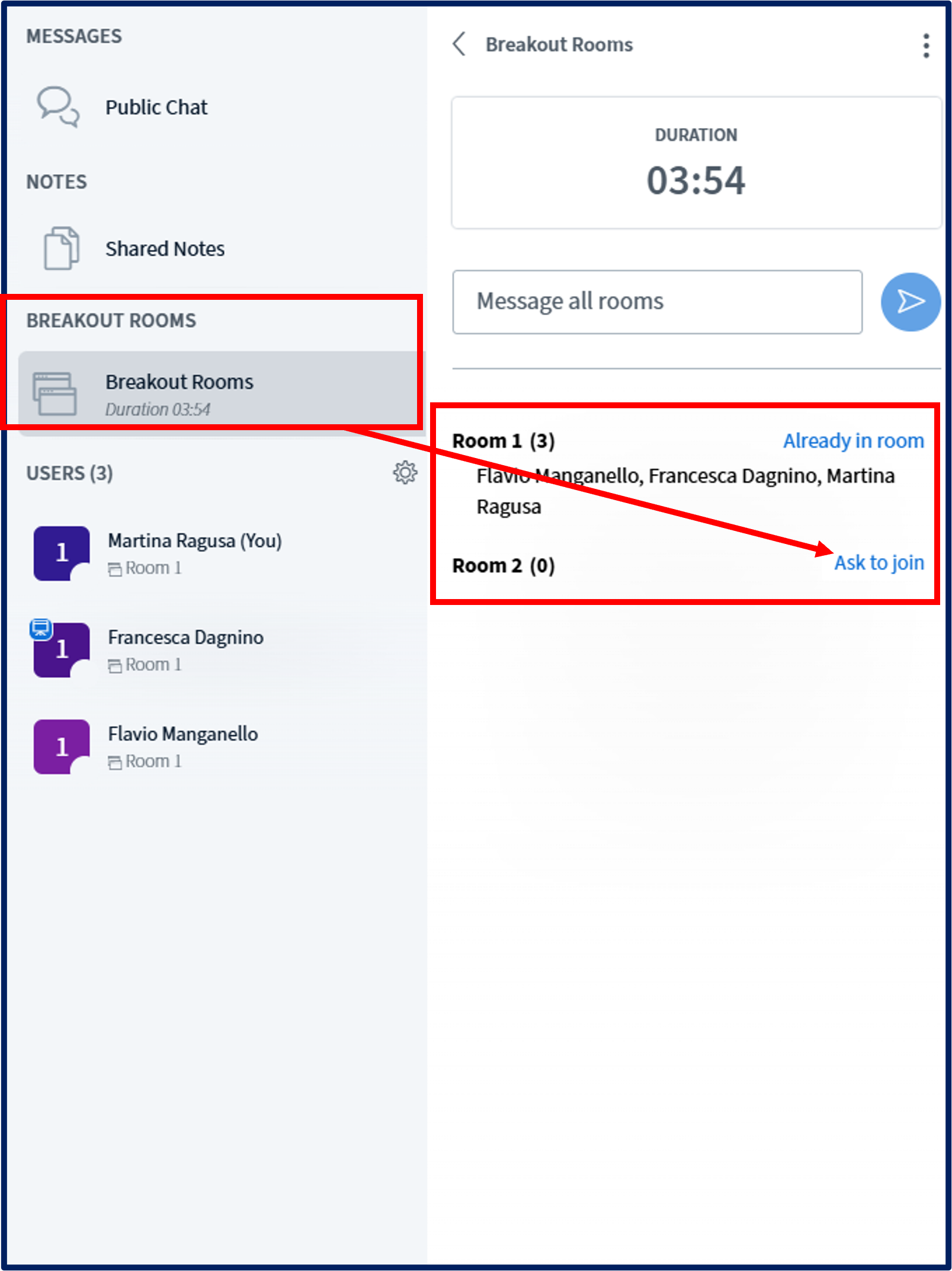
During a webinar activity, the moderator may decide to split the participants into separate groups called breakout rooms. To accept an invitation to join a breakout room, click on the blue Join Session button in the popup alert that will appear on the screen:
When requested, perform the audio test to enter the room, which will open in a separate tab:
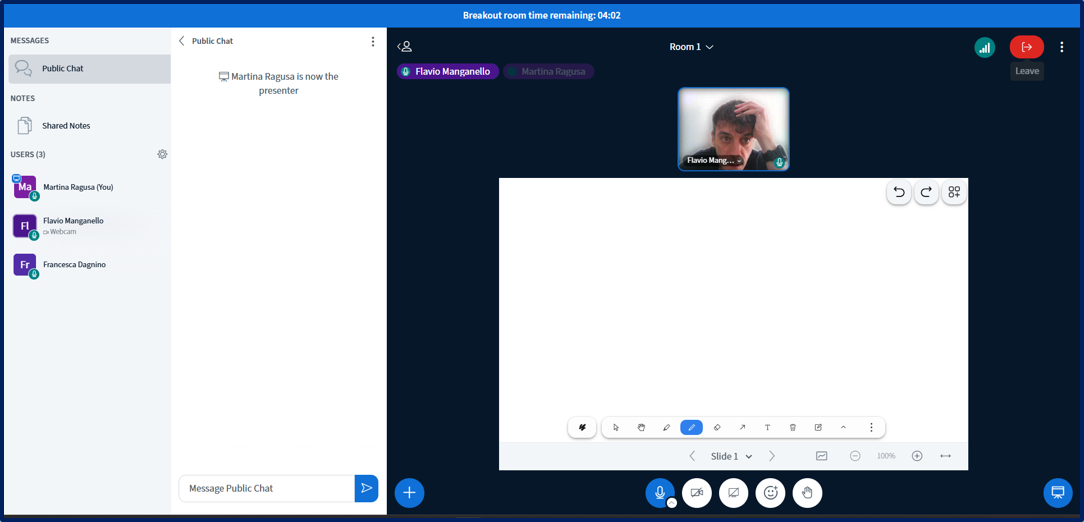
Breakout rooms work exactly like the main instance of the webinar, with the following exceptions:
- Documents shared in the Presentation panel will only be visible to members of the group.
- Chat messages will only be readable by members of the group.